In the previous section, we performed row operations and matrix pivots to develop solutions to linear systems. In this section, we will show software to do this.
Almost all software that handles matrices have some way to do row operations on the matrix. However, often it is complicated to do. Clearly any software that will help with the understanding here should be used. We will show using a website called WebCAS that handles matrices in a very nice way. In this section, we will show some of the features.
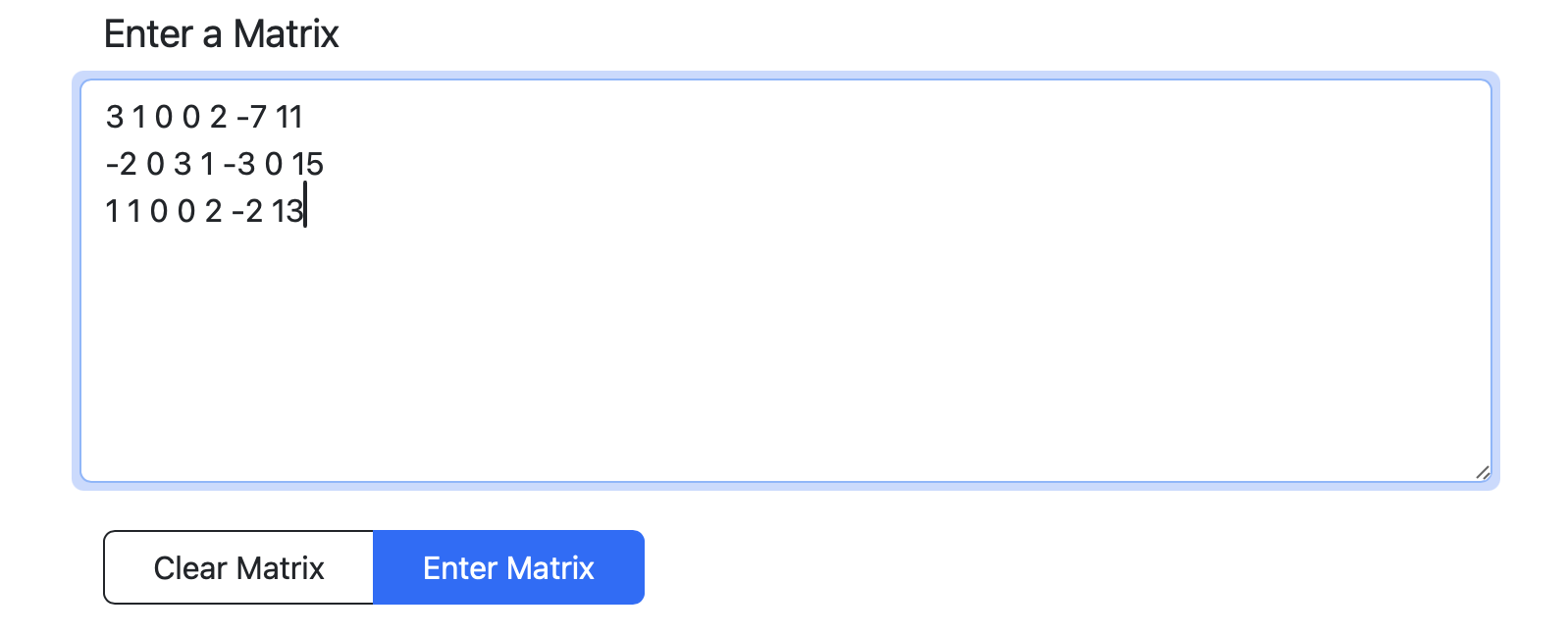
In this section, we will enter matrices into WebCAS and perform row operations on the matrix. Let’s start with the matrix that we saw in Example 1.3.21. From the WebCAS main page, select the Gaussian Eliminator tool. Within the large box, enter the matrix as numbers separated by one or more spaces and each row on a separate line. This matrix can go in as
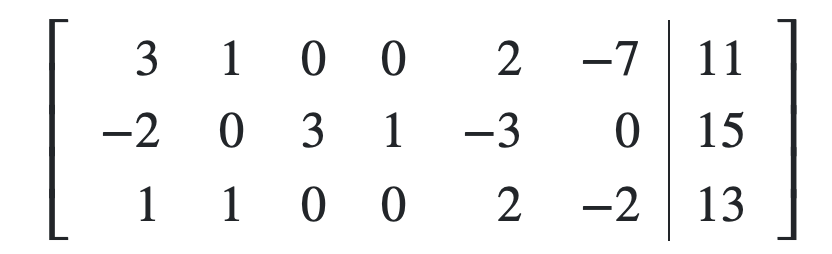
Although the matrix above probably does not have the vertical line on the last column. This is a matrix decoration—it’s purpose is to separate out the last column visually. To get this, click the gear icon in the top bar and the first option is Vertical Line Mode. Select Before Last Column then click Save Changes.
A linear combination of rows is the above two operations above mushed together. This is often not an elementary row operation because for certain operations (like finding a determinant), one needs to be careful. However, this is a nice convenient operation for matrix pivots.
For the operations except the Row Swap, if you leave off the -> R2 or an row, it will use the previous row as the row to insert. This way, complicated row operations can be done.
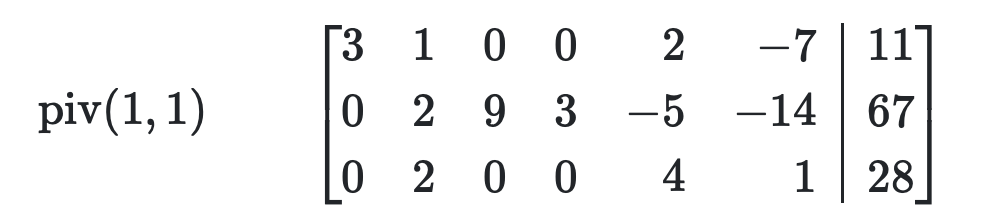
Returning to the matrix above from Example 1.3.21, we wanted to perform a matrix pivot about row 1, column 1. This was done with the two operations \(-2R_1 - 3R_2 \to R_2, R_1 -3R_3 \to R_3\) and in the Gaussian Eliminator, you can add both operations in the same box with -2R1-3R2->R2, R1-3R3->R3. (Or drop the arrow and last row). Hitting the Enter button (or the enter key on your keyboard), you should see:
Figure1.4.4.Row operations on the above matrix performed in WebCAS. This is a matrix pivot about row 1, column 1 and the image is the result of the two operations.
Recall that on a matrix pivot the goal is to zero out the column that you are pivoting about (and we will want to get a positive number on the pivot element). Therefore, it should be clear that the pivot was done correctly. If not, there is an Undo button which will bring back the previous matrix and reinserts the row operation. Edits can be done and re-entered.
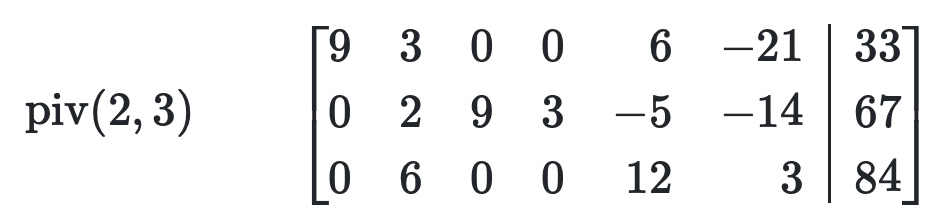
Figure1.4.6.Row operations on the above matrix performed in WebCAS. This is a matrix pivot about row 2, column 3 and the image is the result of the two operations.
Note that as we described in Example 1.3.21, this operation wasn’t quite needed (the second row already is solved for \(x_3\)). However, we did it to fit in with the standard pivot operations.
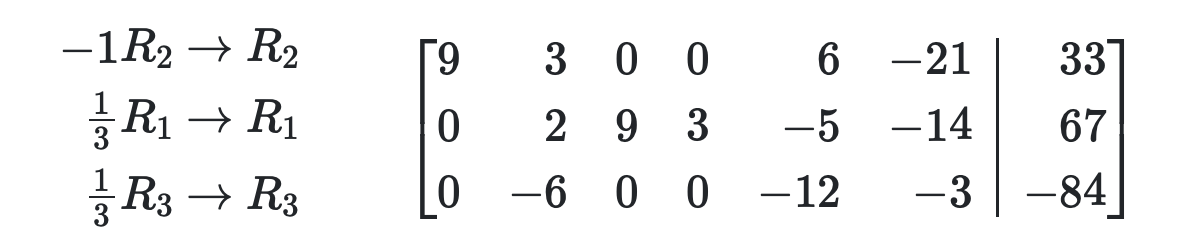
To finish the pivot, we need to negative the second row and then multiply the other two rows by \(1/3\text{,}\) where \(3\) is used as the pivot value of the previous step.
Figure1.4.7.Continued work on the previous pivot. The second row is negated to ensure that the pivot element is positive. Then the other two rows are multiplied by \(1/3\) to keep all previous pivots with the same value.
The fraction operations are put in like 1/3R1, 1/3R3 and a nice feature of WebCAS is that it uses fractions under the hood and doesn’t do a floating-point divide that most languages might do with a 1/3.
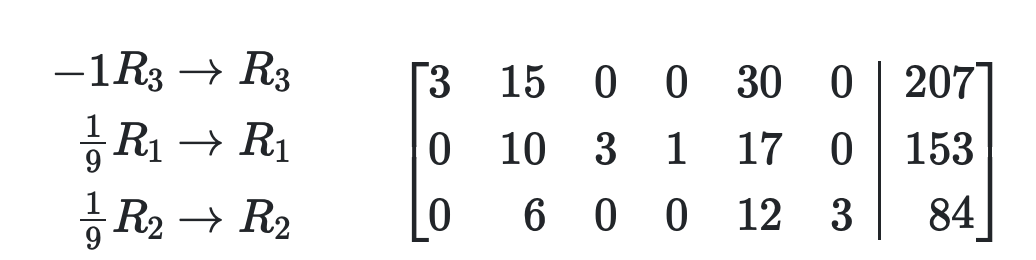
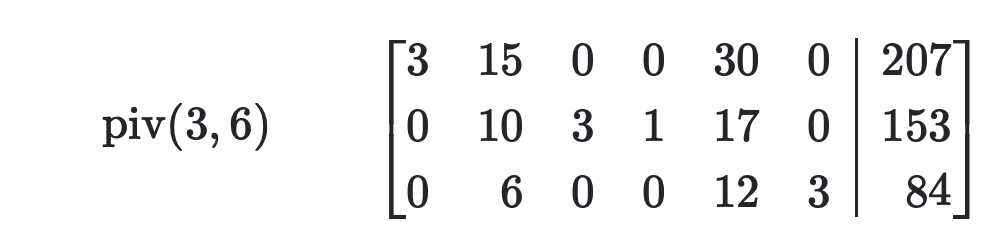
Figure1.4.8.Row operations on the above matrix performed in WebCAS. This is a matrix pivot about row 3, column 6 and the image is the result of the two operations.
You should clearly notice that using WebCAS to perform the row operations were quite nice in that it eliminates arithmetic errors. However, it still takes a number of steps that can be automated. In this section we will use the piv command in WebCAS to further simplify these steps.
And note that this differs from that of Figure 1.4.4 in that the last two rows differ by a multiple of \(-1\text{.}\) One can get from one to the other by row multiplications. The next pivot was about row 2, column 3, so entering piv(2,3) results in
and this is now equivalent to the matrix in Figure 1.4.9. Using this fraction-free pivot method, or the piv command in WebCAS will keep the matrix in integers and the pivot elements equal (and positive). As we will see, using this and a related form of the pivot will simplify many operations used in later chapters.
Another feature of WebCAS is Click To Pivot. When selected, this allows the user to click on an element in the matrix and perform the click. Once enabled, you can simply click on any entry in the matrix to perform a pivot about that element. This feature streamlines the process, especially for larger matrices, by reducing the need to manually enter pivot commands. After clicking, the matrix will update automatically to reflect the pivot operation. This will help as the size of the matrix increases.